


Pine Script is TradingView's programming language for creating custom trading indicators and strategies. It allows traders to analyze market data, automate signals, and test ideas with historical data - all directly within TradingView. By learning Pine Script, you can tailor indicators to your specific trading needs.
Key Takeaways:
- Core Structure: Every Pine Script starts with
//@version=6, anindicator()declaration, and the main code logic. - Custom Indicators: Use built-in functions like
ta.sma()for moving averages orta.macd()for MACD calculations. - Interactive Settings: Add
input()functions for adjustable parameters without editing the code. - Testing Tools: Use the Pine Editor to write, debug, and test scripts directly on TradingView charts.
- Publishing: Share your scripts in TradingView's library with options for open, protected, or invite-only access.
This guide walks you through Pine Script basics, advanced features like stress testing and multi-timeframe analysis, and AI-assisted workflows with LuxAlgo Quant, an AI coding agent specialized in Pine Script for TradingView. Whether you're creating a simple moving average or a more advanced MACD-based study, Pine Script can help you turn trading ideas into practical chart tools.
Pine Script v6: Full TradingView Scripting Course for Beginners
Embedded iFrame
sbb-itb-cf0ed88
Pine Script Basics
Understanding these basics is essential for creating custom indicators that align with your trading approach. If you also want ready-made studies to inspect and compare against your own logic, LuxAlgo’s Library provides a useful starting point.
Core Syntax and Structure
Every Pine Script starts with three key components: a version declaration, a declaration statement, and the main code body. The version declaration, written as //@version=6, tells TradingView which compiler version to use. If you skip this step, the script defaults to version 1, which lacks many modern functionalities.
You can declare variables using the = operator, like src = close, and update them with :=. Pine Script processes data as a series - a collection of values stretching back in time. For example, referencing close gives you the current bar's closing price, while close[5] retrieves the closing price from five bars earlier.
Pine Script also includes built-in functions to simplify technical analysis. For instance, ta.sma(source, length) calculates a Simple Moving Average, and ta.ema(source, length) computes an Exponential Moving Average. You can add comments to your code by using // to clarify your logic.
Here’s an example of a simple five-line indicator to illustrate these concepts:
//@version=6
indicator("My First Moving Average", overlay=true)
length = input.int(14, title="MA Length")
ma_value = ta.sma(close, length)
plot(ma_value, color=color.blue, title="Moving Average")
Using the indicator() Function
The indicator() function is where you define your script's identity, key properties, and behavior. Every Pine Script must include exactly one declaration statement for it to work. This function specifies the script's title (the full name visible in TradingView's Indicators menu), the short title (the name shown on the chart legend), and whether the indicator overlays the price chart or appears in a separate pane. Use overlay=true to show the indicator on the main price chart or overlay=false for a separate pane, like with MACD or RSI. Additionally, the precision parameter determines how many decimal places are displayed for the indicator's values.
For the script to compile successfully, you’ll need at least one output function, such as plot(), plotshape(), or barcolor(). Next, we’ll look at how to set up and test your script in TradingView's Pine Editor.
Setting Up Pine Editor on TradingView
Accessing Pine Editor
To get started with the Pine Editor on TradingView, open any chart and locate the "Pine Editor" tab at the bottom of the screen. Click it, and the code editor interface will appear. If you want to create a new script, select "New" in the top-right corner of the editor. You’ll then see several templates like "New indicator", "New strategy", or "Blank indicator script". Most users opt for "New indicator" to begin.
Once you've written your script, hit "Save" to store it in your personal library. When you reopen the editor, it will automatically load your last saved script. To see your work in action, click "Add to Chart". This will compile your script and display its output on the active chart.
Editing and Testing Scripts
The Pine Editor is designed to make coding easier with features like color-coding and autocomplete. You can press Ctrl + Space to see suggestions for functions and variables, use Ctrl + S to save your work quickly, and hit Ctrl + Enter to compile your code and instantly update the chart.
If your script contains errors - like syntax issues or undefined variables - they’ll appear in red in the console at the bottom of the editor. For debugging, you can use functions like plot() to visualize variable values directly on the chart or label.new() to display specific data points. Additionally, TradingView’s debugging and logging features can help you inspect runtime behavior more carefully. For traders who want a faster way to prototype, validate, or troubleshoot scripts, LuxAlgo Quant can help generate Pine Script from natural-language prompts and refine logic before you paste it into TradingView.
Once your script is error-free, you can take it a step further by adding interactive customization options.
Using Inputs for Customization
The Pine Editor allows you to create interactive settings using input functions like input.int(), input.float(), and input.bool(). These inputs let users adjust parameters without needing to modify the script itself. For example, the following snippet:
length = input.int(14, title="MA Length")
creates a numeric field in the script's Settings menu, allowing users to change the moving average period. You can also add parameters like minval (e.g., minval=1) to restrict values to a logical range, preventing invalid entries.
To improve usability, use the tooltip parameter to add hover-over descriptions for more complex settings. You can also organize related inputs into collapsible sections with the group parameter. If you want users to select from predefined options, the options parameter lets you create dropdown menus, reducing the potential for errors when choosing between calculation methods. If you want to accelerate that build process with AI assistance, Quant’s documentation outlines workflows for generating and validating Pine Script more efficiently.
Building Simple and Advanced Indicators
Creating a Simple Moving Average (SMA) Indicator
A Simple Moving Average (SMA) is one of the most straightforward indicators you can create in Pine Script. Start by declaring //@version=6 and setting overlay=true so the SMA appears directly on the price chart.
To make the length adjustable, use input.int(20, "SMA Length"). This allows traders to easily set their preferred period, such as 20 or 50, without modifying the code. The built-in function ta.sma(close, length) calculates the average of closing prices over the specified period. Finally, use plot(smaValue, color=color.blue, title="SMA Line") to display the indicator on the chart.
Here’s the complete code for a basic SMA:
//@version=6
indicator("Simple Moving Average", overlay=true)
length = input.int(20, "SMA Length")
smaValue = ta.sma(close, length)
plot(smaValue, color=color.blue, title="SMA Line")
If you want to move from a basic indicator to a more customized TradingView workflow, Quant is especially useful for quickly turning ideas like multi-line overlays, alerts, and custom conditions into valid Pine Script without starting from a blank file.
Developing a MACD Indicator
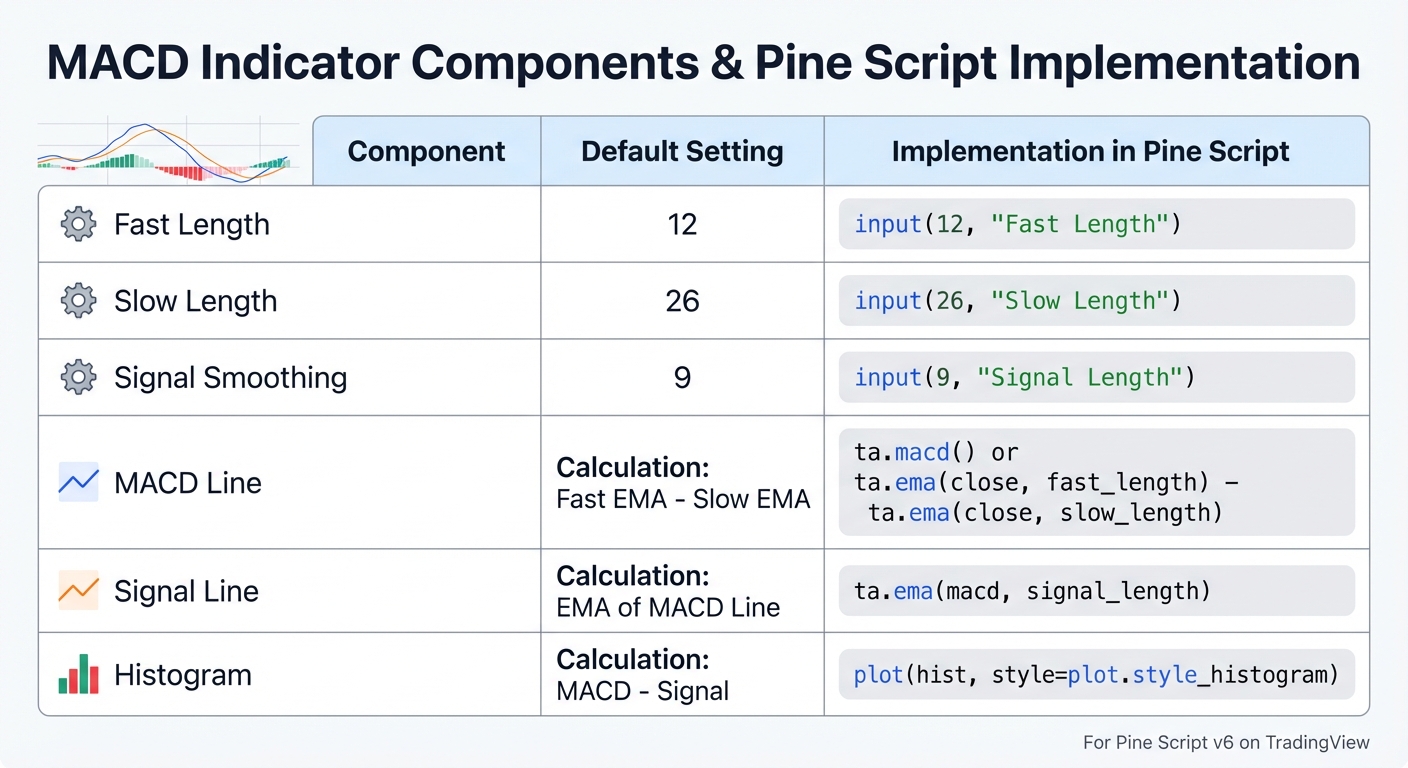
The MACD (Moving Average Convergence Divergence) is a more advanced indicator that involves multiple calculations: a fast EMA, a slow EMA, a signal line, and a histogram. Unlike the SMA, the MACD is displayed in a separate pane below the price chart, so set overlay=false.
Start by adding inputs for the Fast Length (default 12), Slow Length (default 26), and Signal Smoothing (default 9) using input.int(). Pine Script simplifies the process with ta.macd(), which calculates the MACD line, signal line, and histogram all at once: [macdLine, signalLine, histogram] = ta.macd(close, fast, slow, signal).
For visualization:
- Use
plot()to draw the MACD and signal lines. - Use
plot()withstyle=plot.style_histogramfor the histogram. - Apply conditional coloring to the histogram for better clarity:
color = histogram >= 0 ? color.green : color.red.
To provide a clear reference point, add a zero-line using hline(0). This makes it easier to spot crossovers and momentum shifts.
| Component | Default Setting | Implementation in Pine Script |
|---|---|---|
| Fast Length | 12 | input.int(12, "Fast Length") |
| Slow Length | 26 | input.int(26, "Slow Length") |
| Signal Smoothing | 9 | input.int(9, "Signal Length") |
| MACD Line | Fast EMA - Slow EMA | ta.macd() or manual calculation |
| Signal Line | EMA of MACD Line | ta.ema(macdLine, signal_length) |
| Histogram | MACD - Signal | plot(histogram, style=plot.style_histogram) |
For reliable performance, use barstate.isconfirmed to ensure calculations are based on closed bars. Also, test the indicator across various timeframes, like hourly and daily charts, to verify its accuracy in different market conditions. For broader inspiration on indicator structure and signal design, the LuxAlgo blog includes related educational content for traders building on TradingView.
Using LuxAlgo Quant for Pine Script Development
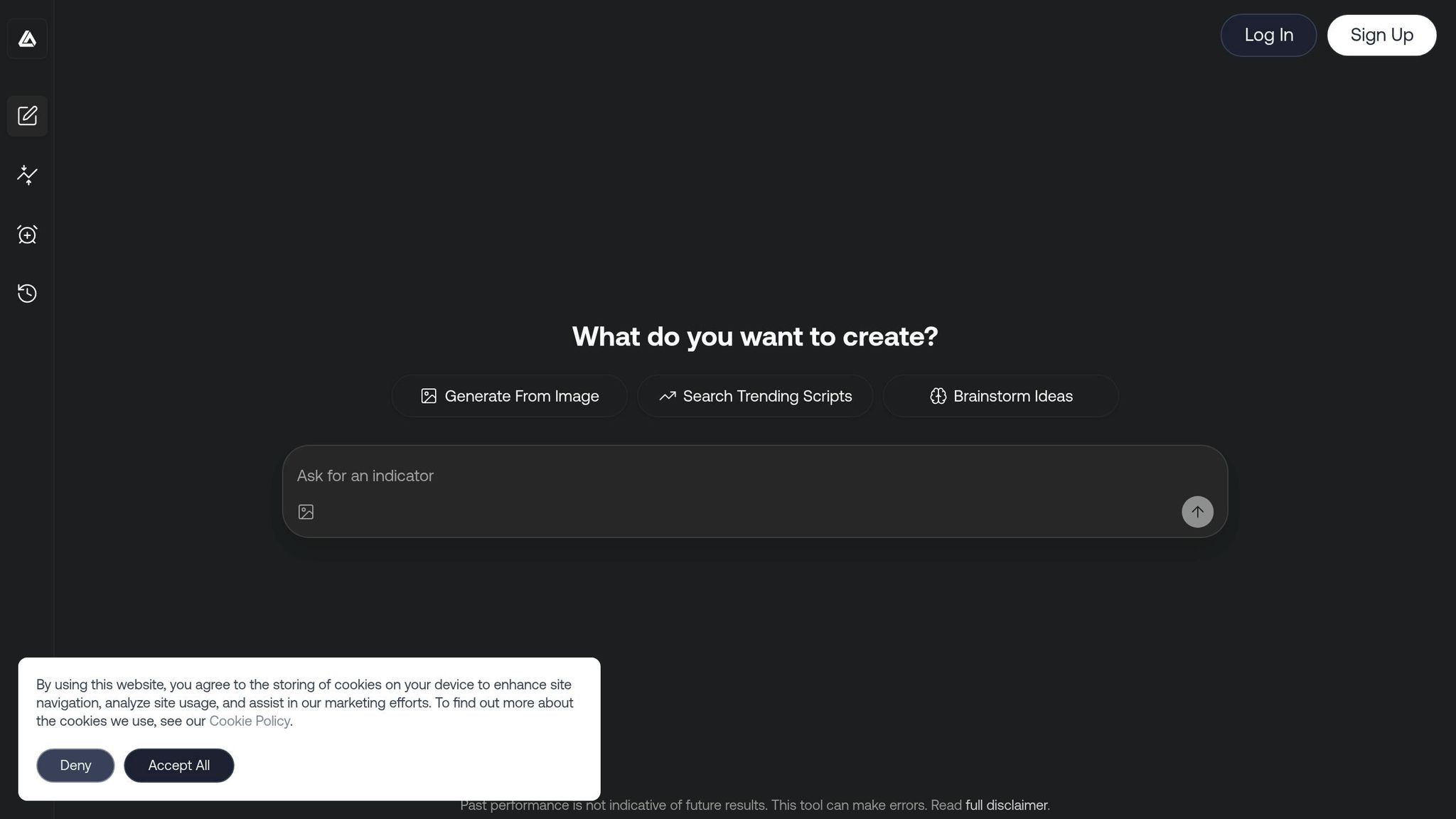
LuxAlgo Quant takes Pine Script development to the next level by automating code creation. Instead of manually writing or debugging scripts, you can describe your trading idea in plain language - like "an RSI oscillator with signals" - and Quant generates the corresponding Pine Script. This approach reduces coding friction and helps traders create custom indicators faster without getting bogged down in repetitive syntax details [1].
Generating Code with Natural Language Prompts
To start, provide a clear description of your indicator concept. For instance, typing "An RSI oscillator with signals" generates a basic script structure. You can then refine it step by step by adding specific instructions, such as:
- "Add a 20-period SMA to the RSI"
- "Include alert conditions for overbought levels"
- "Adjust the colors and line widths"
For more complex indicators, you can even ask Quant to outline a plan before generating the code. This step-by-step approach helps your script evolve in a controlled and predictable way while keeping the logic easier to audit.
Image-to-Code Conversion and Optimization
Quant also offers a vision-to-code workflow, where you can upload a chart screenshot and have the AI reverse-engineer it into Pine Script. After generating the initial code, make adjustments using targeted prompts like "Change the color scheme" or "Add tooltips." This method keeps iterations straightforward and manageable.
Another standout feature is Quant's validation and debugging workflow, which checks your script against Pine Script standards and helps surface syntax or runtime issues during generation and refinement. If the script doesn’t work as intended, you can ask Quant to plot intermediate variables, simplify sections, or revise the calculation flow to pinpoint where logic may be going wrong.
Deploying Scripts to TradingView
Once your script is ready, paste it into the TradingView Pine Editor. Test it thoroughly using both historical data and live market updates to ensure it behaves as expected in real-time conditions.
For further refinement, LuxAlgo’s AI Backtesting Assistant can help traders explore and optimize strategy logic across different assets and timeframes. Quant is available to all users, while Premium and Ultimate plans provide higher usage limits for Pine Script generation and validation [2]. Combined, these workflows shorten the path from idea to chart-ready code.
Publishing and Optimizing Indicators
Once your script is developed and tested, the next step is to make it available to others and fine-tune its performance.
Publishing Pine Scripts to the TradingView Library
To publish your script, click the "Publish Script" button in the Pine Editor. The title of your publication will automatically match the title parameter in your indicator() or strategy() function, so take the time to ensure it’s clear and descriptive before proceeding.
Start with a private publication. This allows you to review and confirm the description, code, and chart appearance before committing to a public release. Keep in mind that TradingView’s publishing workflow and moderation standards are actively maintained, so it’s worth reviewing the latest documentation before publishing publicly [3]. To maximize clarity, remove any unnecessary chart elements so your indicator remains the focal point [4].
When writing your description, stick to English for the title and provide an English version first in the description. Since the Public Library is shared globally, this improves accessibility across international versions of TradingView [4]. Your description should explain the core logic of the script. Avoid vague statements like "this script is for scalping" - instead, detail the methods or calculations involved. If your script builds on open-source code, give proper credit to the original author and ensure your adaptations offer meaningful improvements rather than just cosmetic changes.
TradingView supports three levels of access for published scripts:
- Open: Code is visible to everyone.
- Protected: Code is hidden but free to use.
- Invite-only: Both code and usage are restricted to users you authorize.
Public scripts undergo moderation, and any violation of TradingView’s House Rules or Script Publishing Rules can result in the script being hidden.
Performance Optimization Tips
The Pine Profiler in Pine Script v6 is a useful tool for identifying performance bottlenecks [5]. It highlights which lines of code consume the most execution time on historical and real-time bars, making it easier to focus optimization efforts where they matter most.
To improve performance:
- Limit external data requests: Minimize the number of
request.security()calls, as fetching data from other timeframes or symbols increases runtime. If you must use higher-timeframe data, avoid combining it with lookahead behavior that can create unrealistic historical results or moderation issues [4]. - Use constants effectively: Declare values that don’t change with
constto reduce processing overhead. Avoid using persistent declarations for true constants, and usevarorvariponly when caching one-time or stateful calculations is appropriate. - Validate user inputs: Use
minval,maxval, andoptionsininput.*()functions to prevent users from entering values that could lead to errors or excessive resource usage.
Once performance issues are addressed, the next step is to ensure your indicator works reliably across different timeframes. For traders moving from indicator creation to full system validation, AI Backtesting is a natural next step.
Testing Across Multiple Timeframes
Testing your indicator across various timeframes helps confirm its consistency. Start with a standard timeframe like the 1-hour chart, then test shorter intervals (for example, 5-minute and 15-minute) and longer ones (such as daily and weekly). Look for any discrepancies in signals or errors that might emerge at specific intervals.
Visualize intermediate variables to ensure multi-timeframe data updates correctly and aligns with expectations. For example, when using request.security(), plot the fetched data on your chart to confirm it behaves as intended. To avoid overwhelming the console or slowing down your script, use barstate.islast or barstate.isconfirmed to log data only on specific bars [6].
To check for repainting, observe your indicator’s value on a real-time bar, wait for the bar to close, then reload the chart. If the historical value has changed, your script is repainting and requires adjustments. Use barstate.isconfirmed to address this issue. Additionally, avoid using synthetic price charts like Heikin Ashi or Renko for strategy logic or trade signals, as they can distort backtesting results [3].
Conclusion: Building Custom Indicators with Pine Script
Pine Script gives traders the ability to create custom indicators tailored to their specific strategies. You can combine multiple signals into one indicator and set up automated alerts to keep track of market activity without constant monitoring. TradingView’s Pine Script ecosystem now includes tens of thousands of public scripts and extensive official documentation, giving traders a strong base to study, adapt, and build from [7].
This streamlined workflow allows you to focus more on improving your trading edge. LuxAlgo Quant makes that process faster by converting plain-language ideas and chart inputs into Pine Script built for TradingView. For traders exploring AI-assisted financial analysis, indicator design, or strategy prototyping, Quant can significantly shorten the path from concept to deployment.
As highlighted in the basics and customization steps, creating dependable indicators requires a strong grasp of the fundamentals and thorough testing across various timeframes. Traders who want to combine custom scripting with production-ready chart analysis can also explore LuxAlgo for broader TradingView workflows.
Key Takeaways for Traders
Let’s revisit some of the most important points for developing effective indicators:
- Start simple: Begin with basic tools like moving averages before tackling more complex systems.
- Use
input()functions: These make it easy to adjust parameters without modifying your code. - Avoid repainting issues: Ensure your logic runs only on confirmed (closed) bars using
barstate.isconfirmed. - Test thoroughly: Validate your indicators across different timeframes and on out-of-sample data to ensure they perform well in diverse market conditions.
Mastering Pine Script can be one of the most impactful skills for a trader. When paired with LuxAlgo Quant, AI Backtesting, the Library, and the support of the TradingView community, you have a practical workflow for creating, testing, and deploying indicators that can strengthen your strategy development process.
FAQs
How do I stop my indicator from repainting?
To avoid repainting issues in Pine Script, you’ll want to steer clear of anything that relies on future data or intrabar information. Here’s how you can do that effectively:
- Use
request.security()with care: Setlookahead=barmerge.lookahead_offto ensure future data doesn’t sneak into your calculations. - Stick to finalized data: Build your signals using confirmed values, like the bar’s close price, rather than mid-bar or speculative data.
- Test thoroughly: Double-check your indicator to confirm that signals remain consistent after bars close or when you refresh the chart.
By following these steps, you can ensure your script provides reliable and accurate signals.
When should I use request.security() for multi-timeframe data?
In Pine Script, the request.security() function lets you pull data from other timeframes or symbols directly into your script. This is especially useful for tasks like:
- Analyzing a daily trend while working on a 15-minute chart.
- Comparing data from multiple assets within a single script.
By using this function, you can access historical or live data from different sources. This allows you to integrate broader market insights into your current analysis, giving you a more comprehensive view for making trading decisions.
What’s the fastest way to optimize a slow Pine Script?
If your Pine Script is running sluggishly, TradingView's performance profiling tools can help pinpoint the problem areas. Start by identifying the bottlenecks in your code. Once you know where the issues lie, focus on streamlining your calculations, cutting down on unnecessary function calls, and eliminating repetitive computations - especially in loops or on every bar. By targeting the most resource-intensive sections of your script, you can significantly boost its runtime efficiency.
References
LuxAlgo Resources
- LuxAlgo
- LuxAlgo Blog
- LuxAlgo Library
- LuxAlgo Pricing
- LuxAlgo Quant
- Quant Introduction Documentation
- Quant Prompting Tips
- AI Backtesting Assistant
- Stress Testing for Trading Strategies
- Understanding Moving Averages and How Traders Use Them