Live Order Book, DOM and Trades Come to Vela
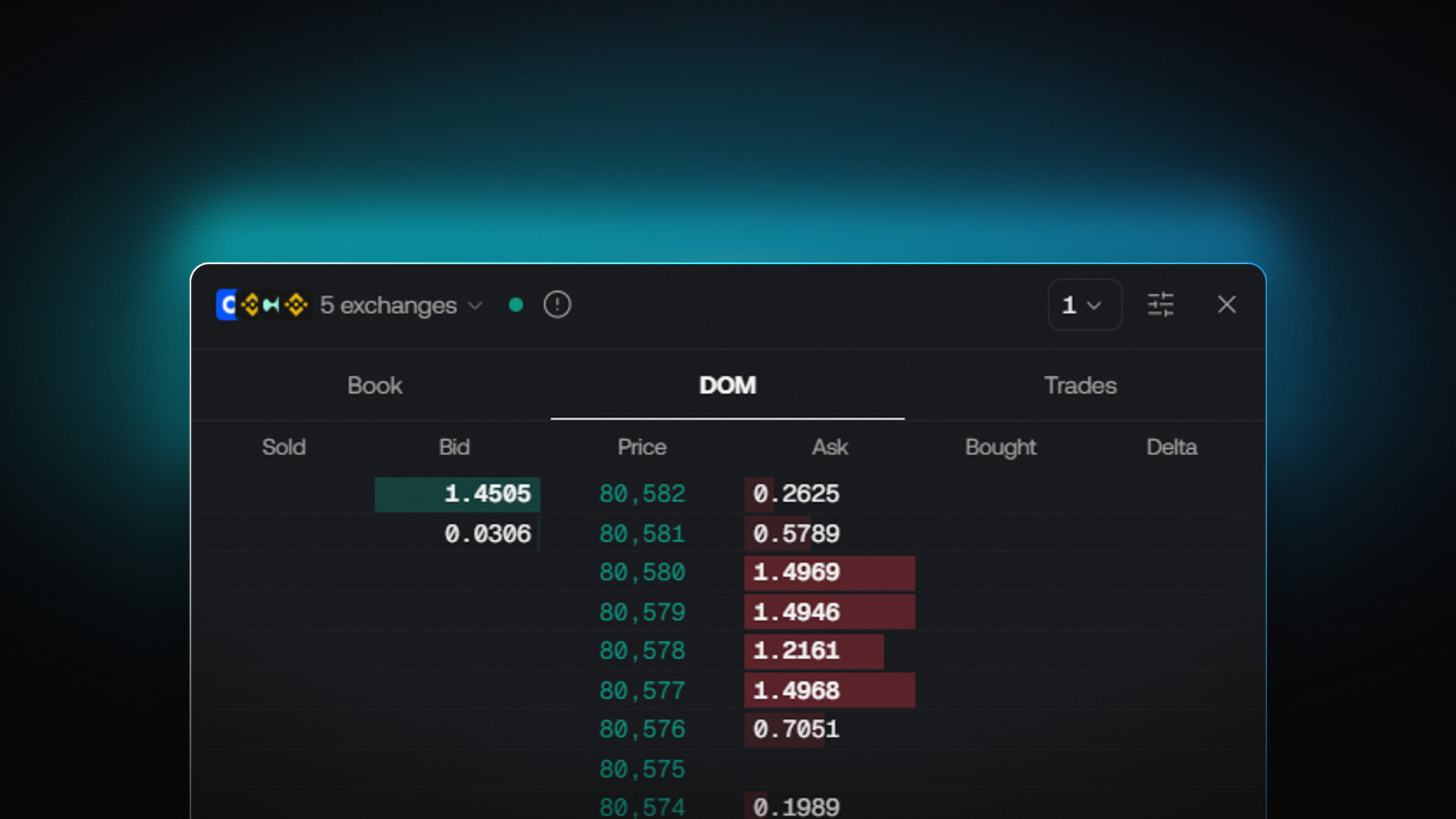
Today we’re adding a live order book, a depth of market (DOM) ladder and a trade feed to Vela, our next-generation charting platform. For cryptocurrencies, you can now watch resting bids and asks, the volume traded at each price, and the delta between buying and selling volume in one panel beside your chart.
Reading depth often means switching between an exchange’s order book and a separate chart. We built all three views into the chart’s side panel, so the book, ladder and tape sit alongside the symbol you’re analyzing, with no need to switch windows.
The panel supports L2 depth from Binance, Binance.US, Hyperliquid and Coinbase. Start with your chart’s market, or combine supported markets through the exchange selector for a broader view. You can draw price levels from all three tabs, mark areas from Book, and paper-trade from the DOM without leaving the panel.
See Vela’s live order book, DOM and trade feed in action.
The Book, Styled the Way You Read It
The Book tab shows market depth: resting bids and asks at each price, sized so you can see where liquidity is thick and where it thins out. It gives you a quick view of displayed supply and demand before price reaches a level. The book’s style is customizable, so you can set it up to read the way you trade.
To open it, load a crypto symbol in Vela and select the order book icon on the chart’s right-hand toolbar. The panel opens with three tabs across the top: Book, DOM and Trades. Pick Book, then use the settings control at the top of the panel to adjust how depth is displayed.
On a Bitcoin chart, a heavy band of asks above the last price shows where sellers currently have orders resting. A thin patch of bids underneath shows where less buying interest is displayed. You see both without leaving the chart you are already reading.
The DOM: Bids, Asks and What Actually Traded
The DOM tab is a vertical price ladder with configurable recentering around the market price. Each row represents a price level. The default view shows six core columns: Sold, Bid, Price, Ask, Bought and Delta. Bid and Ask show resting size as green and red bars, so larger orders stand out at a glance. Sold and Bought show executed selling and buying volume at that price. Delta is Bought minus Sold. You can customize the columns, and an Orders column appears when there are orders, positions or exits to show.
That pairing is the point of the ladder. Resting size shows current orders, which can change or be canceled; traded size shows completed executions. The footer shows when the tally started, and Reset begins a new count, so you can measure activity from the start of a session, a news release or a breakout.
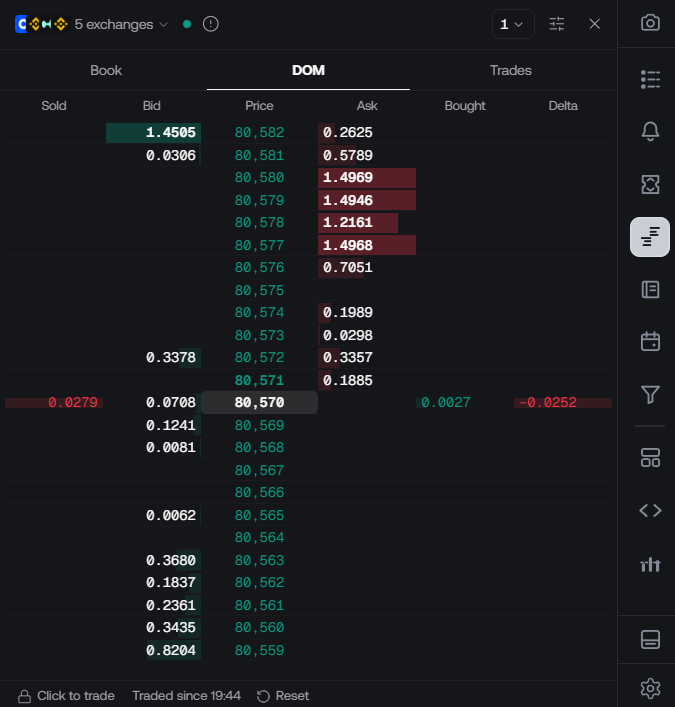
The screenshot shows Bitcoin with the last price at 80,570. Above it, asks of 1.4969, 1.4946, 1.2161 and 1.4968 stack from 80,580 down to 80,577, a visible wall of offers. At 80,570 itself, 0.0279 sold against 0.0027 bought, a delta of -0.0252: selling volume exceeded buying volume at that level. Watching resting and traded size together helps you assess how a level responds as trades come through.
Trades: The Tape Beside the Chart
The Trades tab is the live feed of executed trades as they print. Where the DOM organizes activity by price, the tape organizes it by time, showing the sequence and pace of execution rather than the total at each level.
Switch to it from the same panel with one click on the Trades tab. The symbol and exchange selection carry over, so the tape you are reading matches the book and ladder you just left.
The two views work as a pair. A burst of prints on the tape tells you something just happened; flipping back to the DOM shows you where that size landed and how it changed the delta at each level.
Draw Levels and Areas Straight From the Panel
Every row in the Book, DOM and Trades feed is tied to a price, and you can draw a price level on the chart from any of the three tabs. Turn the prices that catch your attention into chart drawings without copying them across manually.
From any of the three tabs, right-click a row to draw a level. In Book, the area action marks the range from the best price on that side to the selected row. These drawings appear on the chart alongside your indicators and other drawings.
Take the ask wall from the screenshot. Use the Book tab’s area action to mark a band from its best ask to your selected ask row. Then watch how candles behave as price approaches the area and whether the size is traded through, pulled or refreshed. A single large bid or ask can become a level in the same way.
Paper-Trade From the DOM
The DOM is also an order ticket. You can paper-trade from the DOM directly, placing practice orders at the price levels on the ladder while live depth moves around them.
At the bottom of the panel, select Click to trade to unlock trading from the ladder. From there, you can place simulated orders at the price levels you see while monitoring live depth. Lock it again when you want to return to reading without placing an order accidentally.
Use paper trading to practice entries, exits and position sizing while watching the book. No real money is involved. Fills are simulated and can differ from live execution, so use the results to review your process rather than predict how a live order will fill.
Depth Aggregated Across Exchanges
A single venue’s book shows a slice of the market. Vela lets you view a single exchange or combine depth from supported markets into one view. Aggregated L2 data shows the total resting size at each price level provided by the connected feeds, which is what the Bid and Ask columns display. The Trades tab complements that depth with executed trades. For more on Vela’s feeds, see the market data guide.
The venues feeding the view today:
- Binance
- Binance US
- Hyperliquid
- Coinbase
The exchange selector at the top of the panel shows which venues are active, with a live connection indicator beside it. When you select multiple markets, the ladder combines displayed size from those feeds, giving you a broader view than a single exchange’s book.
Try the Live Order Book in Vela
The live order book, DOM and trade feed are available for cryptocurrencies now. Open Vela, load a crypto symbol, and select the order book icon on the right-hand toolbar. Start with Book to spot resting liquidity, switch to DOM to compare it with traded volume, then use Trades to follow the latest executions.
Open Vela and try the live order book
Choose one level, mark it on your chart, and watch how the book and tape change as price approaches.
Read next