Quant Now Watches the Market for You
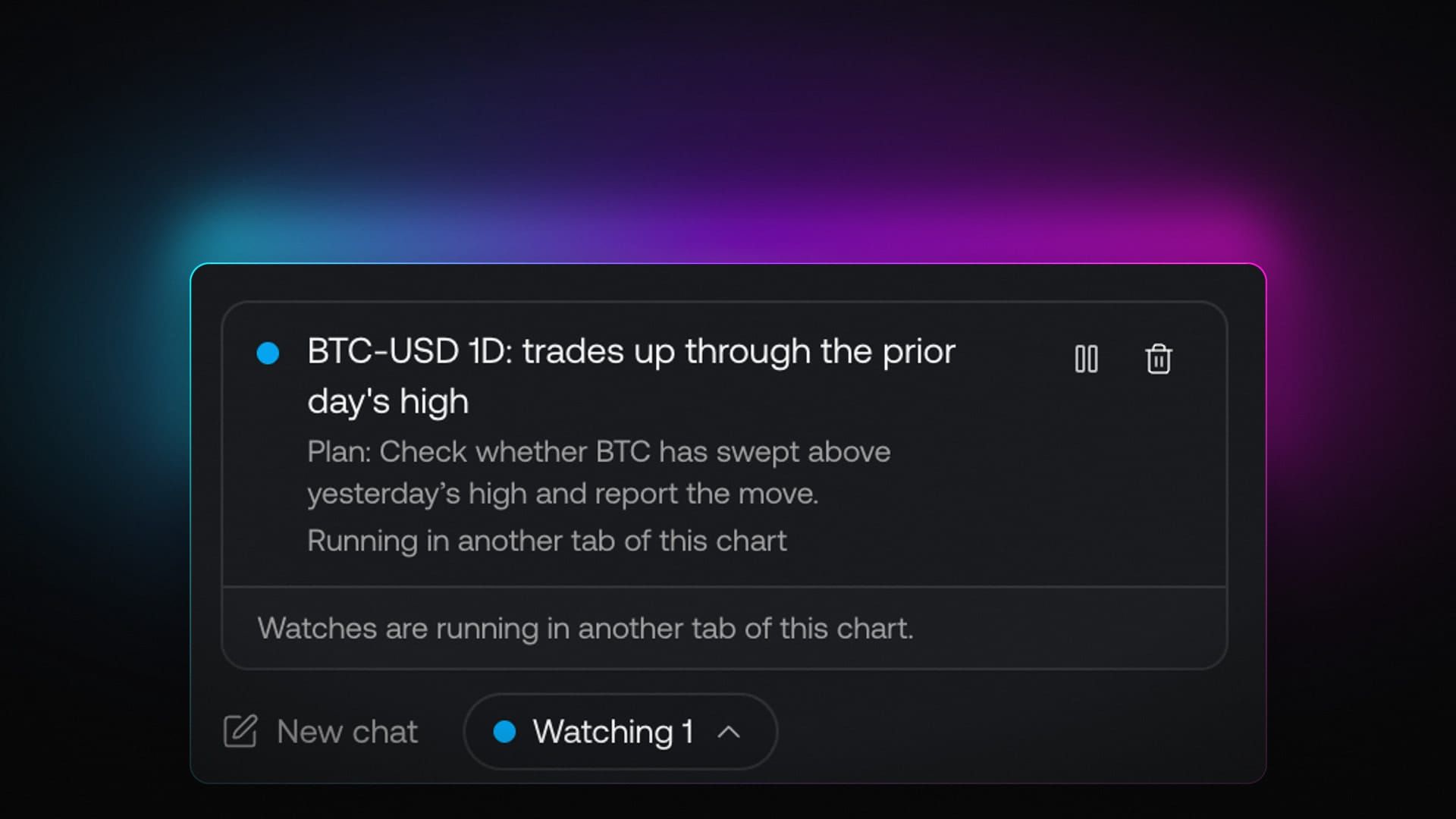
With Watch mode, Quant, our coding agent in Vela, our next-generation charting platform, can keep an eye on your chart for you. Tell it what to watch: a price level, a zone, an indicator plot, a candle pattern, a session event or a time of day. When the condition is met, Quant brings the triggering bar into your chat, looks at the chart and explains what it sees.
Some of the moments that matter happen while you're in a meeting, reading or working in another tab: a close above yesterday's high, a sweep of the Asia low, the New York open. A watch lets Quant wait for the condition you choose and bring the chart back into the conversation when it happens.
Watch mode is available in Quant on every plan, including Free. Keep the chart tab open and your device awake while a watch runs.
Say What to Watch in Plain Words
A watch starts as a sentence. Type it into the Quant chat the way you would say it to another trader: "watch for a close above yesterday's high and explain it when it happens." Quant works out which condition you mean and proposes a watch on a card in the chat.
The card is the agreement between you and Quant. It shows what Quant is going to check, and nothing runs until you press Start watching. If the card doesn't match what you meant, say so in the chat and Quant proposes a new one. Once you press Start watching, the watch is live on that chart.
A watch either fires once or keeps watching with a cooldown between triggers. Use once for a single event you are waiting on, such as the first close beyond a level. Use a cooldown when the condition can repeat through a session and you want Quant to report on it again later without crowding the chat.
What a Watch Can Check
Watches are built from conditions on the chart in front of you. A single watch can combine up to six of them, with all of them required or any one of them enough to fire.
- Price against a level: crossing, closing beyond, holding above or below, or touching a level. The level can be a number you give, or yesterday's, today's, overnight, Asia or London high or low.
- Zones: price entering a zone, leaving it, or closing inside it.
- Script plots: any plot of a script on the chart crossing a value or crossing another plot of the same script, whether the script came from the Library or Quant wrote it for you.
- Candle patterns: engulfing bars, inside-bar breakouts, and a sweep and reclaim of a level.
- Session events: the New York, London, Asia and CME Globex opens, the New York close, killzones and macros.
- Time: a time of day on the weekdays you choose.
Combining conditions is where watches get specific. One watch can wait for the London open and a close above the Asia high, both required. Another can fire on any one of three things: a touch of yesterday's low, a close inside a zone, or an oscillator plot crossing a value you set. The card spells out the logic before you start. Watches check conditions as bars close by default; price and zone watches can also fire on the current bar.
What Happens When a Watch Fires
When the condition hits, Quant posts the bar that triggered it in the chat. If the Quant panel was closed, it opens. Then Quant takes a turn on its own: it looks at the chart, explains what happened, and suggests what to look at next.
An alert tells you a condition was met. A watch brings Quant into the conversation to examine the chart around that event. For a close above yesterday's high, Quant can describe the bar in context and point out what is worth checking next.
Because the turn lands in the same chat where you set the watch, the context stays together: your original request, the card, the triggering bar and Quant's read, in order. You can reply to it like any other message and keep working through the idea from there, whether that means adjusting the watch, asking a follow-up question, or having Quant build something on top of what it found.
Plans Wait for Your Approval
A watch can carry a plan for one paper trade. Describe it when you set up the watch, and it travels with the conditions. When the watch fires, Quant puts the plan on an order card in the chat for you to approve. Orders proposed after a watch fires always wait for your approval, even if you enabled auto-approve for paper orders. The decision stays with you, at the moment it matters, with Quant's read of the chart right above the card.
That makes a watch a way to rehearse an idea in real time. Set the condition you would act on, attach the paper trade you would take, and let each trigger arrive with an explanation and a decision to make. It is practice with the chart in front of you, not a forecast of how any trade will turn out.
If you are learning, turn on Teach mode from the + menu in the Quant chat. In Teach mode, Quant explains the why behind every step, from how it turned your sentence into a watch to what it is reading on the bar that fired it. The watch becomes a lesson that happens on live price, at the moment the setup you care about actually appears.
Limits and Plan Usage
Watches are available on every plan, and the limits are the same for everyone:
- Up to 12 watches per workspace.
- Up to 6 running at once.
- At most 6 Quant turns an hour from watches.
Each turn a watch starts counts toward your Quant plan usage like a message you send. If you're out of usage, the watch still fires and tells you, but Quant won't start a turn. If Quant is already replying, the watch waits until the chat is free.
Watches run in your browser while the chart tab is open and your device is awake. Closing the tab stops checks until you open it again. On mobile, a watch pauses when the browser moves the tab to the background.
Start Watching
Pick a chart and tell Quant about a moment you don't want to miss. Try: “Watch for a close above yesterday's high and explain what happened.” Read the card, press Start watching, and keep the chart tab open while your device is awake. When the condition is met, return to the same chat for Quant's read.
Read next