Multi-tasking with AI on Vela Workspaces
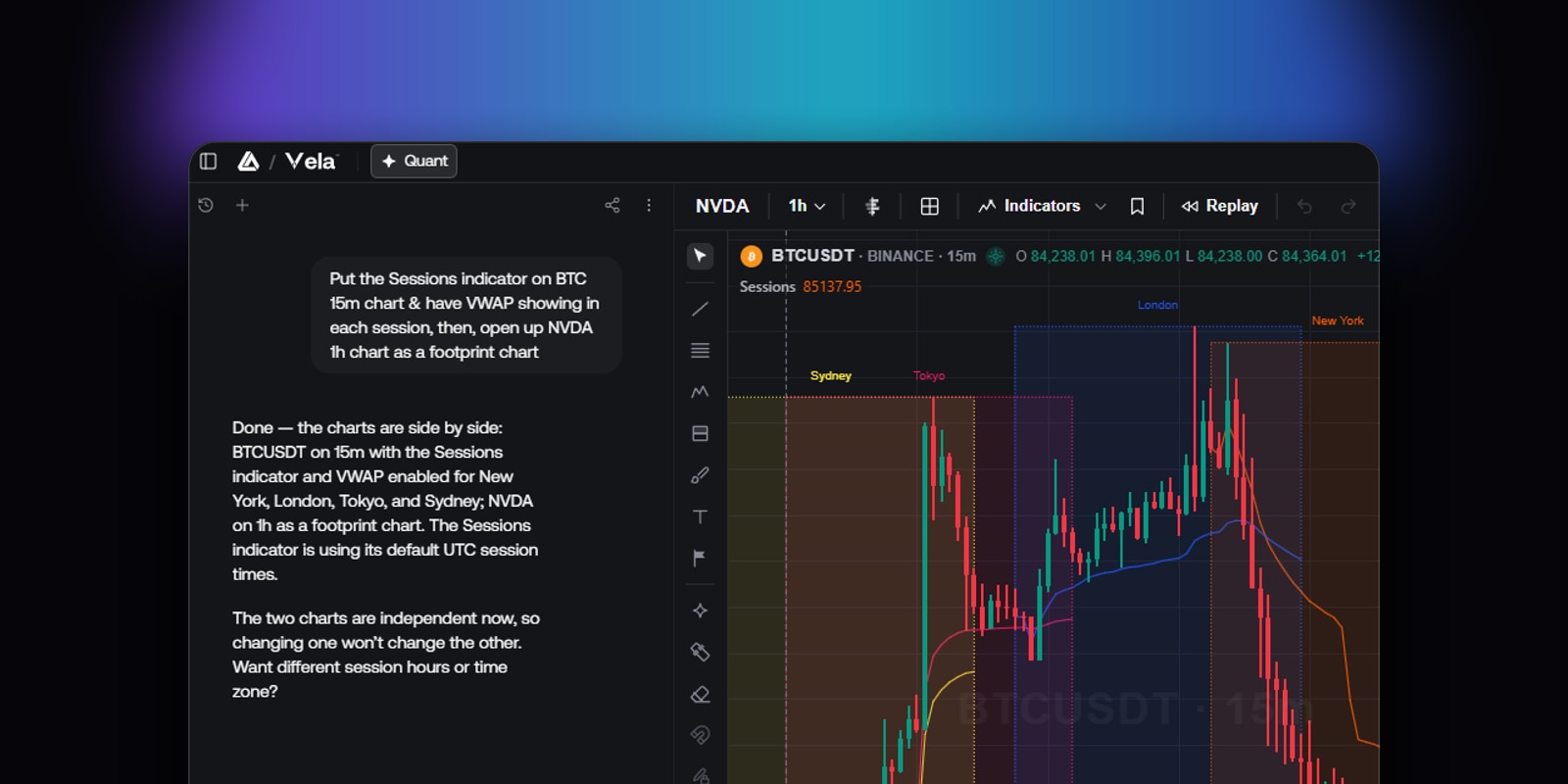
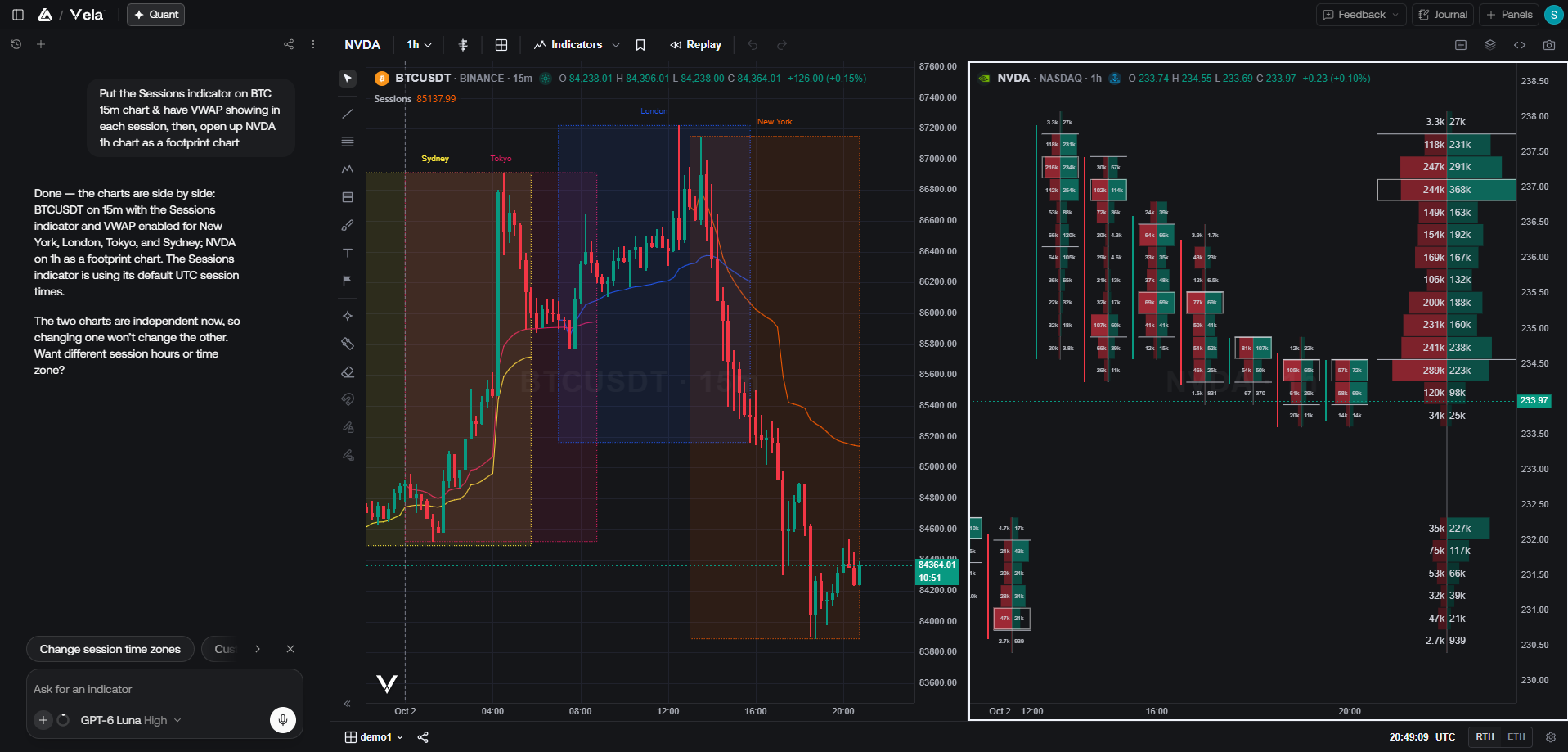
We built Quant to work across your whole Vela workspace, not just one script at a time. You can now ask it to create, edit, and remove several scripts in one conversation while you set up multiple charts.
The result is a shorter path from an empty workspace to a complete chart setup. A script Quant creates or edits belongs to your Vela workspace immediately and appears under My Scripts in the indicator menu. There is no separate commit step to confirm or save.
Open Vela to try the updated workflow.
Set up multiple charts in one conversation
Previously, our coding agent, Quant, handled one script at a time. You asked for an indicator, committed it to your workspace, and then started again for the next chart or change. That made multi-chart setups require repeated conversations and manual coordination.
Now, one conversation can manage several scripts across your workspace. You can ask for an indicator on one chart, a chart type change on another, and a style adjustment on a third. Quant creates new scripts, edits scripts it already wrote, and removes scripts you no longer want without requiring a new conversation for each task.
To use it, open a workspace in Vela and start a conversation with Quant. Describe the setup you want, then follow its instruction when it needs a different chart. Quant acts on the chart that is currently active, so it asks you to click the relevant chart before making a change there. Once that chart is active, it continues the requested task and reports which chart it changed.
This is useful when several charts serve different roles in the same workspace. A trader comparing multiple timeframes can keep the conversation focused on the complete setup instead of repeating the same setup process for every chart.
Pull Library indicators directly
Quant can now add indicators from the LuxAlgo Library faster. When you ask for Smart Money Concepts or another Library indicator, it adds the existing indicator directly rather than rebuilding an equivalent script from scratch.
Library indicators now take a direct path from request to chart. Open Quant from your Vela workspace and name the indicator you want to use. When the indicator is available in the Library, Quant pulls it into the setup and applies it to the chart you have selected. You can then continue the same conversation with another request, such as changing a style or working on a different chart.
This keeps the Library and Quant working together. The Library provides the indicator, while Quant helps organize the indicators and chart changes across your workspace. You do not need to recreate an existing Library indicator just to include it in a multi-chart setup.
Your scripts save automatically
The commit step is gone. Anything Quant creates or edits belongs to your Vela workspace as soon as it is made and remains there until you remove it.
Quant-created work is saved to the workspace automatically. Ask Quant to build or change a script, then continue setting up your charts. There is no separate “commit to workspace” action and no additional save step between requests. If a script is no longer part of your setup, ask Quant to remove it.
This matters most when you are making several changes in sequence. You can create a script, adjust it, apply another indicator, and move to a different chart without stopping to confirm each change. For a single strategy on a single chart, the main change is simply that the commit step is no longer part of the workflow.
Find your work under My Scripts
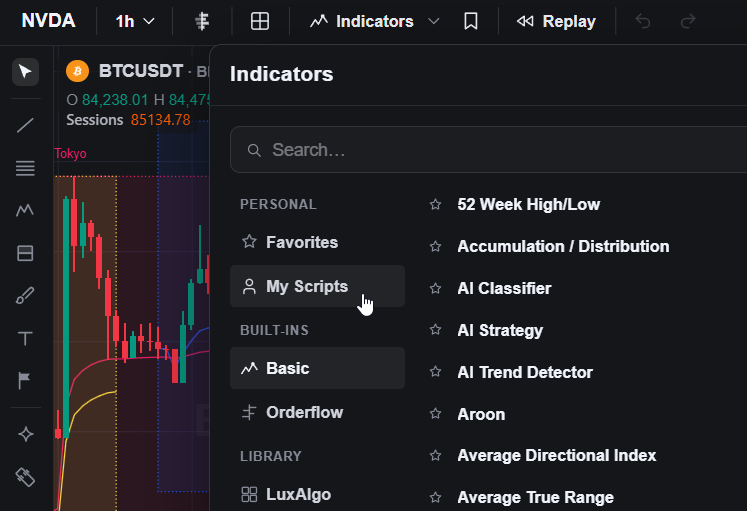
The Vela indicator menu now includes a My Scripts section. It lists every script Quant has created for you, so you can find and reapply your own work in the same menu where you find Library indicators.
Open the indicator menu on a Vela chart and select My Scripts to view the scripts Quant has made in your workspace. Choose a script to apply it to the active chart. This gives you a consistent place to return to scripts you have already created instead of searching through past conversations.
The current “Add to chart” action applies the most recent script Quant created in the conversation. Edited scripts do not use this path yet; to apply an edit, use the chart Quant is working on. More control for applying edited scripts is planned, but it is not part of this release.
Scripts saved manually are not included in My Scripts yet. The section currently lists scripts created by Quant.
Try the updated workspace workflow
This workflow is built for traders who keep several timeframes side by side, reuse an indicator across charts, or make related changes while studying the same symbol. The conversation stays together while the workspace reflects each approved request.
Quant now gives you a single conversation for multi-chart setup, faster access to Library indicators, automatic workspace saving, and a dedicated My Scripts section for Quant-created scripts.
Open Vela and start building a workspace with Quant.
Read next