SmartTrader: Trading Tool Analysis
SmartTrader supports chart analysis, configurable alerts, and SmartScripts, with documented connections to compatible MetaTrader 4 brokers. LuxAlgo provides native charts and Quant, our coding agent, for developing indicators and testing explicit strategy rules. The choice depends on whether you need a documented broker-connected workflow or a chart research environment.
This comparison reviews official product documentation available September 8, 2026. SmartTrader’s public home and pricing links currently lead to a login page, so current subscription prices and account-specific entitlements could not be independently confirmed. That does not establish that the service has closed; it means older price tables should not be treated as a current offer.
Quick Comparison
| Need | SmartTrader | LuxAlgo |
|---|---|---|
| Chart analysis | Web charting, drawing tools, workspaces, and indicators described in its help library | Native charts, multi-chart layouts, drawings, indicators, and Quant |
| Script workflow | Choose, configure, and run an available SmartScript; browser and computer requirements apply | Develop editable indicators and strategies with Quant, then review the code and run the result |
| Broker execution | Official connection guide describes compatible MT4 accounts | Native chart research and simulated strategy testing; do not equate a backtest with a live broker order |
| Alerts | Conditions and optional trading actions; documented timing and connection limits | Strategy alerts; confirm plan and delivery requirements |
| Price comparison | Check the current offer inside your account before purchase | Free plus Premium, Ultimate, and Ultra; monthly and annual billing differ |
1. SmartTrader Features
Charting, Drawings, and Workspaces
SmartTrader has a browser-based charting workflow. Its official help library documents chart workspaces, technical indicators, drawings, SmartScripts, and trading-account management. It should not be described as a desktop-only MT4/MT5 application simply because it can connect to broker accounts.
The version 7.68 release notes describe geometric, Fibonacci, pattern, and label drawing controls. Users can set coordinates, attach comments, choose visible timeframes, lock a drawing against accidental movement, or anchor an object to a chart corner. Those are concrete ways to organize analysis without suggesting that a drawing predicts the next move.
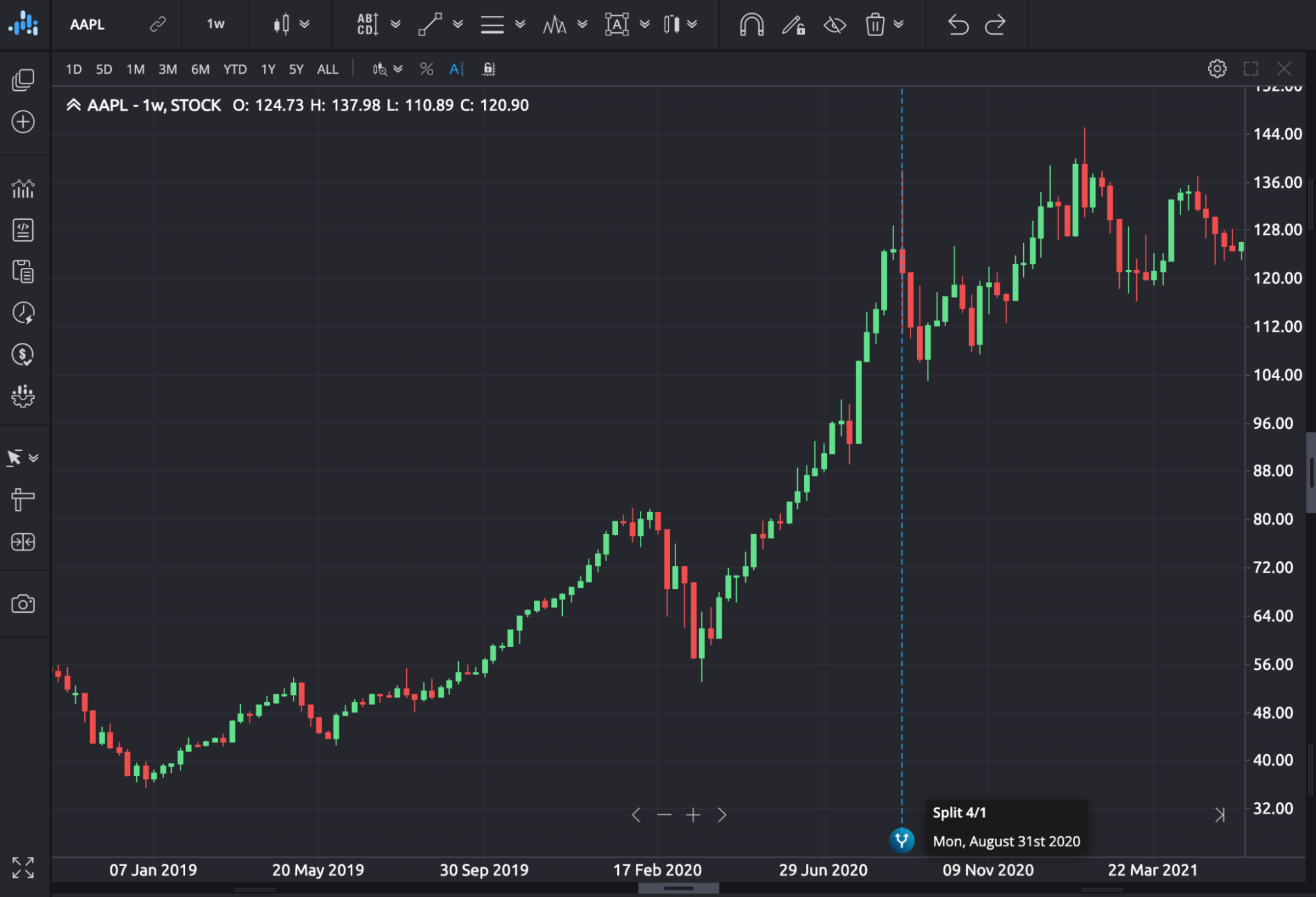
The version 7.74 notes also show stock-split markers that reveal the split date and proportion. Corporate actions matter when interpreting a sudden change in a historical stock chart. Confirm price adjustments and the source of the data before comparing results across platforms.
Earlier comparisons quoted more than 100 indicators and eight charts per workspace. The public pages reviewed here do not establish those as current limits for every subscription. Check the exact indicator, layout capacity, and any paid add-on—such as a Perfect Storm package—in your account before choosing a plan for it.
SmartScripts and Automation
The official SmartScript guide describes selecting an available Premium SmartScript, configuring it, and starting it on a chart. This is a defined script workflow. It does not, by itself, verify claims that an AI automatically learns an individual’s goals, chooses a suitable risk level, or produces a profitable strategy.
The same guide says to keep the browser open and computer running, and not close the chart or workspace running the script. Changing the symbol can stop and remove the script after a warning. SmartTrader recommends a VPS for stability. Include that setup and any hosting cost when evaluating automation; do not assume scripts continue unattended in the cloud after you close the browser.
Broker Connections and Practice Accounts
SmartTrader’s broker connection guide specifically describes MetaTrader 4 accounts and selecting the correct broker server. Its compatible-broker guide includes a location-based search. Verify your precise broker, server, account type, and jurisdiction before relying on order routing. These pages do not justify a blanket claim of MT5 support or compatibility with every MT4 broker.
The connection guide distinguishes the built-in SmartTrader practice account, described with a $100,000 starting balance, from a broker’s demo account. Neither represents live execution. A platform simulation, a broker demo, and a funded account can differ in quotes, spreads, order handling, and achievable fills.
Alerts and Risk Controls
The alert setup guide documents comparisons such as crossing a level, exceeding a value, or moving a specified amount. It includes trigger timing, rearming frequency, expiration, notifications, and optional trading actions such as buying, selling, closing positions, or starting/stopping a script. Available choices depend on the selected tool and account.
There are material timing limits: the guide says alerts can take a couple of minutes to respond and require a device to remain connected and signed in with alerts enabled. “New rate” and “New candle” are different conditions. These details matter especially for scalpers; neither label should be marketed as guaranteed immediate execution.
Stops, limits, and trailing stops can help express a risk rule, but actual execution still depends on the broker and market. Confirm whether a chosen script has a historical testing mode, what data it uses, and how costs are handled. The public sources reviewed do not substantiate the original article’s broad claim of a universal built-in backtesting engine.
Learning and Support
The SmartTrader help library provides setup instructions and release notes, plus a support contact form. Use those resources to learn a specific workflow. Confirm access to any Smart Hub course, trading room, or marketplace package separately rather than assuming every education product is bundled with the chart subscription.
2. LuxAlgo Features
Native Charts and Quant
LuxAlgo charts bring market analysis into a native browser workspace. Use charts, drawings, indicators, and multiple layouts to examine a market, then work with Quant to turn a clearly described idea into an editable indicator or strategy. A TradingView account is not required simply because LuxAlgo also offers tools for that platform.
For example, define a breakout study using only the previous 20 completed bars. Specify the entry timing, exit rule, position size, and costs before asking Quant to implement it. Review Code and Run and check Inputs and Properties. An indicator that draws a signal is not automatically a strategy that simulates orders, and a simulated order is not a live broker trade.
Inspect individual trades, not just the final return. Keep later data separate from the period used to tune the rules, test reasonable parameter changes, and include commission and slippage assumptions. A price-only test does not automatically reproduce SmartTrader alerts, broker quotes, or the runtime behavior of a third-party SmartScript.
Organize the Research in a Workspace
This short LuxAlgo demonstration shows the workspace interface in use. Separate studies by purpose so a change to a fast intraday idea does not get confused with a longer-term setup. The clip illustrates navigation and organization, not a trading result.
Indicator Library and Market Structure
The LuxAlgo Library remains useful for traders researching named tools, including the Triangular Momentum Oscillator, Market Structure Oscillator, and Market Structure (Intrabar). Check each indicator’s page for its behavior and supported platform access rather than treating all Library scripts as the same product.
The Market Structure Oscillator blends short-, intermediate-, and long-term structural readings using adjustable weights, with smoothing and a cycle histogram. That provides a concrete way to investigate how structural momentum changes across horizons. A crossing, extreme, or divergence is a condition to test, not a reliable reversal on its own.
Smart Money Concepts analysis covers market structure, order blocks, and fair-value gaps. These labels describe patterns inferred from price. They do not prove which institution traded, expose its complete position, or establish that price must return to a marked area. Check when swing-based features become confirmed so a historical chart is not mistaken for information available in real time.
Native order-flow analysis is another distinct workflow. The data guide explains supported markets and plan access. U.S. equities data from Cboe EDGX is not consolidated U.S. market volume, and exchange trade-based order-flow analytics do not reveal every resting order. Match the feed and history to the question you are testing.
Pricing and Value
SmartTrader: Verify the Current Account Offer
SmartTrader’s pricing link currently redirects to sign-in. Older Free-to-$99.95 monthly figures are therefore omitted from the current comparison. Before paying, confirm the renewal price, billing period, trial terms, chart and indicator limits, script entitlements, broker connection support, and any marketplace or VPS charges.
LuxAlgo: Monthly and Annual Billing
| Plan | Monthly billing | Annual total | Monthly equivalent when billed annually |
|---|---|---|---|
| Free | $0 | $0 | $0 |
| Premium | $67.99 | $479.88 | $39.99 |
| Ultimate | $119.99 | $719.88 | $59.99 |
| Ultra | $229.99 | $1,439.88 | $119.99 |
These standard LuxAlgo prices exclude temporary promotions. The $39.99, $59.99, and $119.99 annual equivalents should not be described as month-to-month prices. Free includes 500 monthly credits; Premium, Ultimate, and Ultra provide 5,000, 25,000, and 100,000 respectively. Verify the plan’s data, history, layout, alert, and separate-product entitlements before subscribing.
There is no sound basis for declaring LuxAlgo Ultimate universally cheaper than SmartTrader Pro using an old SmartTrader price and LuxAlgo’s annual equivalent. Compare the same billing commitment and include every tool, feed, or hosting service required by your actual workflow.
Key Trade-offs and Platform Selection
| Trading approach | What to evaluate | Practical check |
|---|---|---|
| Day trading and scalping | Required alert timing and supported broker execution | Measure delays and confirm runtime requirements; do not assume instant routing |
| Price-action research | LuxAlgo native charts and Quant | Define the setup, confirmation timing, and exit rules before testing |
| Algorithmic deployment | A supported SmartTrader SmartScript and compatible broker setup | Confirm the script’s behavior, hosting needs, costs, and demo results |
| Custom indicator development | LuxAlgo Library and Quant | Inspect source and settings, then verify the output on the intended data |
| Multi-account execution | SmartTrader account-management workflow | Check supported servers and the selected/default account before an action |
| Sharing analysis | Workspace and indicator-sharing options for the chosen platform | Confirm what is shared and keep personal account information private |
Both interfaces require practice. SmartTrader’s account connections and scripts add operational setup; LuxAlgo’s coding and backtesting workflow still requires a precise idea and review of the implementation. Familiar chart controls reduce friction but do not remove the need to understand what an indicator measures.
For mobile use, test the specific chart, controls, and alerts you need on your device. Do not assume that opening SmartTrader on a phone keeps a desktop script running after its required session is closed.
Start with one market and one task. For SmartTrader, verify the compatible account, configured alert or script, and connection behavior in practice mode. For LuxAlgo, open a supported chart, define the study with Quant, inspect the code and simulated trades, and review a separate period. Compare the complete process—including mistakes and losing tests—before increasing the subscription or adding automation.
LuxAlgo is a strong choice when the priority is native chart research, editable strategy development, and a broad indicator library. SmartTrader may fit traders who specifically need its documented MT4-connected script and alert workflow, provided the current account offer and operational limits meet their needs. Choose from verified requirements rather than an “AI” label or a promise of effortless trading.
FAQs
Does SmartTrader support both MT4 and MT5 brokers?
The official broker connection guide reviewed here describes MetaTrader 4 accounts. It does not establish universal MT4 compatibility or MT5 support. Confirm your exact broker, server, account type, and location with SmartTrader before relying on a connection.
Do SmartTrader scripts and alerts keep running after I close the browser?
The SmartScript guide says to keep the browser open and computer running, and not close the chart or workspace running the script. The alert guide also requires a connected, signed-in device with alerts enabled. Verify these operational requirements for your chosen setup.
How does Quant differ from SmartTrader automation?
Quant, our coding agent, helps develop editable indicators and strategies in LuxAlgo’s native chart environment. Review the code and run the strategy to inspect simulated trades. SmartTrader documents configured scripts and optional broker-connected alert actions; a LuxAlgo backtest is not the same as deploying those live actions.
References
- SmartTrader: official help library
- SmartTrader: script setup and browser requirements
- SmartTrader: MT4 broker connection
- SmartTrader: alert conditions and timing
- SmartTrader: stock-split chart markers
- LuxAlgo: strategies with Quant
- LuxAlgo: strategy simulations
- LuxAlgo: market data and limits
- LuxAlgo: current plans
Read next