Connect Your Broker and Trade From Vela's Charts
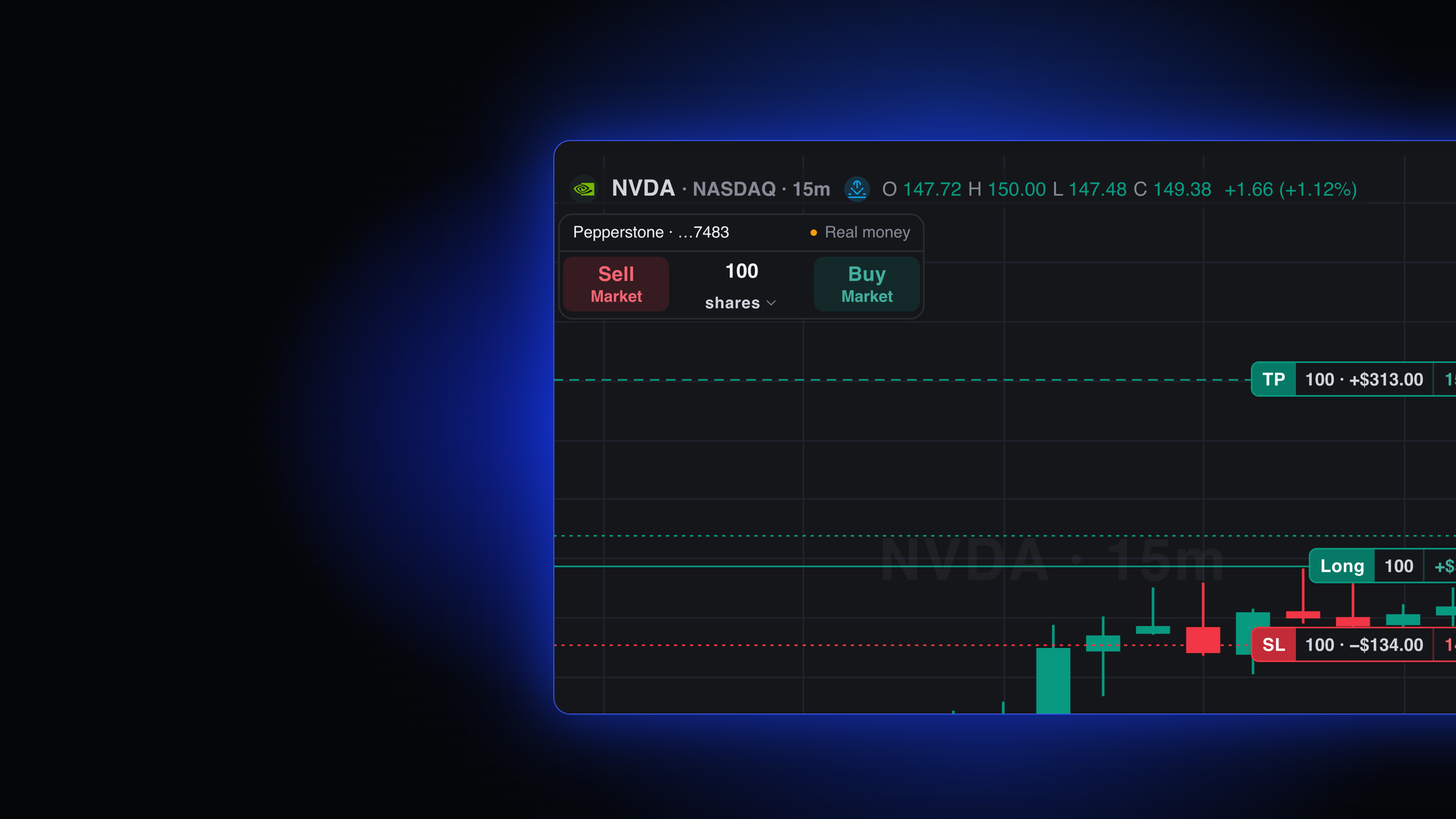
You can now connect your broker or exchange to Vela and place real orders on the chart. Buy or sell under the symbol, drag orders and exits to the price you want, and track your account in the trading panel below.
Until now, you could practice a trade on Vela, but placing it meant opening your broker’s app, rebuilding the order and keeping track of it across two screens. Live trading brings that last step onto the chart where you planned the trade.
If you’ve used Paper Trading by LuxAlgo, you already know the controls. Live accounts use the same Buy and Sell buttons, order panel, chart lines and trading panel. The account you select determines where the order goes. Supported markets include forex, crypto, futures, and US stocks and options.
Trade from the chart
Open a Vela chart and select Trade in the top bar. If you already see a broker button there, select that instead. Choose your broker and sign in with your broker credentials. Your live account appears alongside your paper accounts in the account switcher, so you can practice a setup on paper before choosing the account that will receive the order.
Buy and Sell sit just below the symbol. Open the order panel to choose a market, limit or stop order, add a stop loss or take profit, and set how long the order stays active. If you’ve already marked a level on the chart, right-click at that price to start a limit order there.
Each position and working order has a line on the chart. Drag a working order to change its price, or drag a stop loss or take profit to update the exit at your broker. Select × on a line to close the position or cancel the order. Say you’re long EURUSD with a stop below a support level you marked. If the price rises and you want to raise your stop, drag its line to the new level.
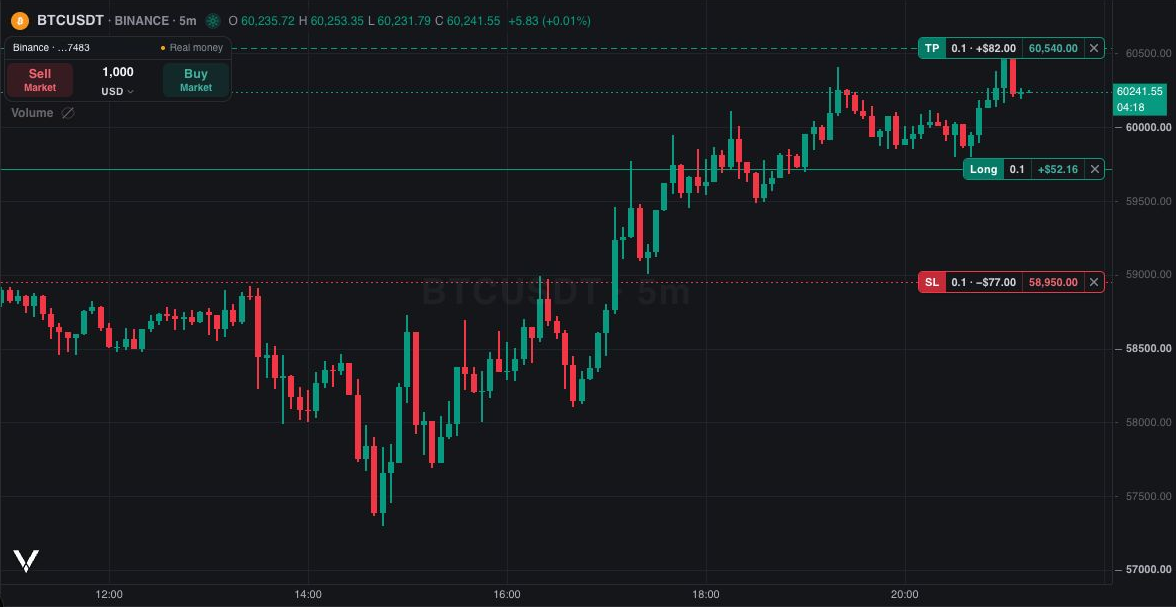
Your browser sends the order to your broker. As soon as the broker reports a fill, Vela updates the chart with the execution.
Your account, under the chart
The trading panel groups your positions, working orders and order history in separate tabs. Open Account summary to see the active account’s balance, equity, open P&L, today’s result, buying power and remaining daily loss allowance. A dash means the broker hasn’t reported that figure.
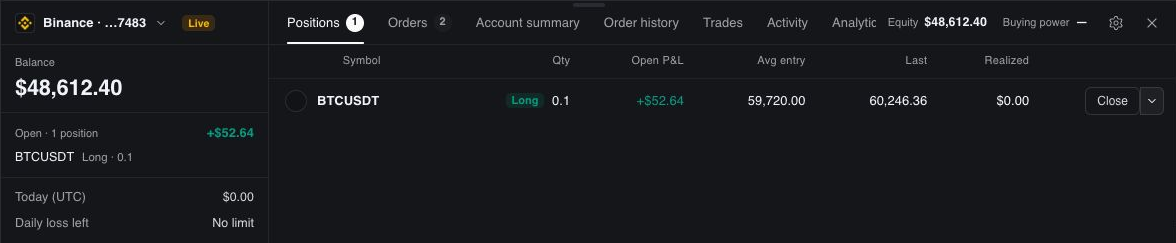
If the broker rejects an order, Vela shows the broker’s reason in a notice and saves it in order history. If the broker cancels an order and supplies a reason, you’ll see that too.
One broker login can give you access to several accounts. cTrader or Aries account has its own entry in the switcher, with its balance and a Live or Paper tag. Under Trade → Connect a broker, choose your broker. The account receiving orders is marked Trading. The others show Switch to it. Switching to a demo account takes one click. Moving from demo to real money requires accepting the trading terms and entering a fresh authenticator code.
Supported brokers and exchanges
Availability depends on where you live. The broker list on your chart shows which connections are available to you.
- Forex and CFDs through cTrader. Use your cTrader ID with Pepperstone, IC Markets, FP Markets, FxPro, Fusion Markets or another cTrader broker.
- Crypto perpetuals. Binance, Bybit, Hyperliquid, Deribit and Lighter.
- Stocks and ETFs. Place whole-share orders for US stocks and ETFs through tastytrade.
- Futures. Trade through Tradovate, including with a NinjaTrader account that signs in through Tradovate.
- US stocks, ETFs and single-leg equity options. Aries, our first featured broker.
Whether you’re trading a BTC perpetual on Hyperliquid or a forex pair at Pepperstone, you use the same order panel, chart lines and trading panel.
Aries, our first featured broker
Connect an Aries account to trade US stocks, ETFs and options from Vela. Live market data streams from Aries to your browser, including options chains, the Order Book, depth of market (DOM) and Time & Sales. You can see Level 2 quotes from individual exchanges and market makers, the national best bid and offer (NBBO), and each reported trade.

You can trade US stocks and ETFs in whole shares, or buy and sell fractional shares using a market order with a day time-in-force. Single-leg US equity options trade in whole contracts. Each Aries account appears separately in the switcher, so if you have both a cash account and a simulation account, you can see which one will receive your order.
On any US stock or ETF chart, Vela’s Options panel shows dealer gamma exposure, options flow, implied volatility and the full options chain. On NVDA or SPY, for example, you can see which strikes have the most gamma exposure, check their prices in the chain and place a trade through Aries from that chart.
If you’re new to Aries, you can sign up from Vela. New Aries accounts are available to US residents only.
Aries (RAM Financial LLC), member FINRA and SIPC.
Safeguards for live trading
Your broker sign-in. Orders go from your browser to your broker using your own broker credentials. LuxAlgo checks and records each order before your browser sends it.
Two-factor authentication. To trade real money, turn on two-factor authentication for your LuxAlgo account. If it’s off, you’ll see a notice before broker sign-in and an explanation beside each affected live account. The trading panel also explains why the balance is missing and links to Account → Security. Demo and paper accounts work without two-factor authentication.
Risk limits. For each broker account, you can set a daily loss cutoff, a maximum number of orders per day, a position cap and a list of permitted symbols. If a limit blocks an order, select the order button to see which limit you’ve reached. If you haven’t set limits yet, the same button opens the setup form. Save your limits and the button returns to order entry.
Start trading from Vela
Open a Vela chart, select Trade and choose your broker. You can practise on a paper account first. When you’re ready to trade live, check the account name in the switcher before placing your order.
Trading involves risk. Only trade with money you can afford to lose.
Read next